How to create a Digital Business Card [Quick Guide - 2026]
To create a digital business card: choose a platform, build your profile with your details and links, brand it, and share it by link, QR, NFC or email signature. With Lead2Team it's ready in a few minutes, and companies create and distribute the whole team's cards from a central panel.
Step-by-step guide to create your Digital Card [UPDATED 2024] Watch on YouTube
Why are digital cards the new standard?
Digital business cards are increasingly used in business environments. Professionals, sales teams and companies across every sector have made the definitive leap. But which factors have driven this adoption?
1. Faster contact creation. Let's be honest… we are always short on time. And generating contacts and growing your business network can be hard without the right technology. Digital business cards let you share your information in seconds through a link or QR code, with no need to meet in person.
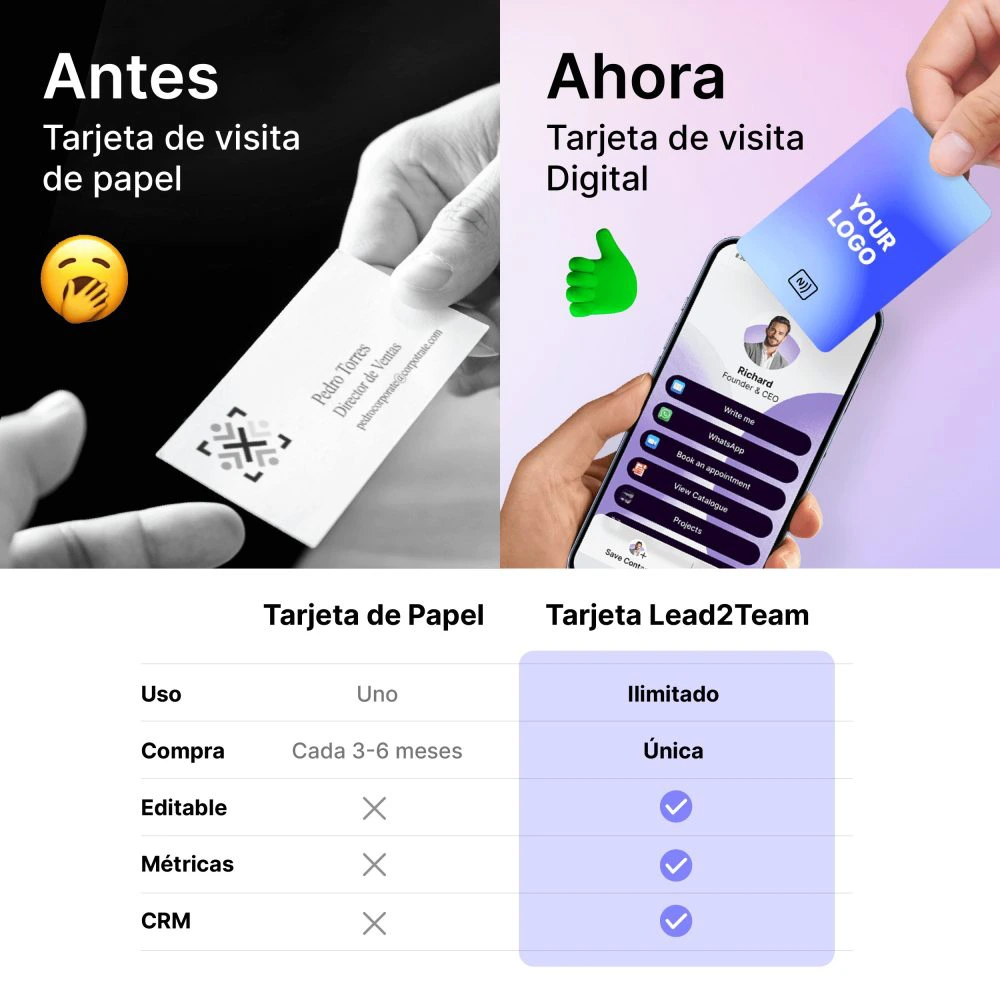
2. Limitations of standard business cards. 88% of paper cards end up in the bin or stored in a drawer. Printed cards have lost their effectiveness in the digital age. Managing and distributing them is costly, and people prefer to save contacts on their phone and connect through email, WhatsApp or social media.
3. The smartphone as the main tool. The number of smartphone users reached 6.92 billion in 2023, which represents 85.95% of the world's population (Statista). Since digital business cards work perfectly with every mobile device, their adoption has grown exponentially.
4. The impact of COVID-19. The pandemic forced many companies to replace in-person meetings with virtual events. 87% of professionals who attend business events cancelled their in-person meetings due to COVID-19. Digital business cards became essential to maintain relationships with customers and prospects in this new environment.
In short, the list of benefits of the digital business card over conventional ones is extremely long. But without a doubt, if you don't have yours yet, the time has come to make the switch.
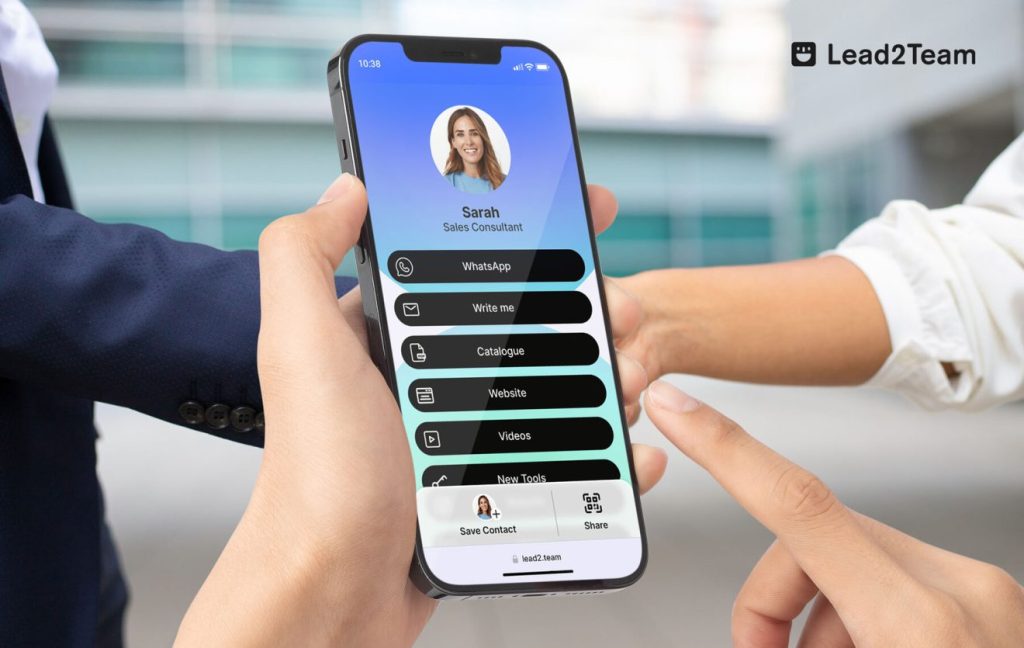
Quick guide to create a digital card with Lead2Team [5 steps]
Step 1: Create your account or log in to your Lead2Team account.
- If you already have an account, Log in
- If you don't have an account yet, Create your account
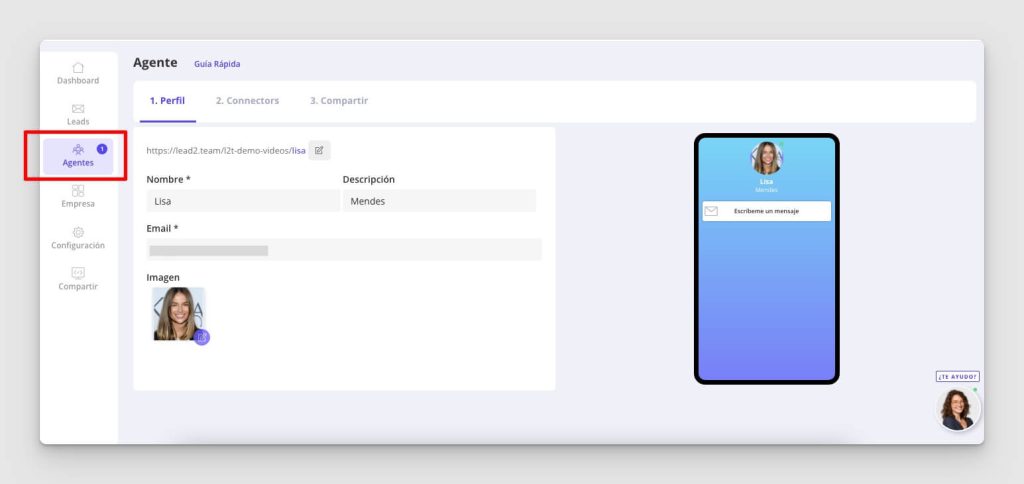
Step 2: Create your contact profile.
From the side menu, go to Profiles. In this section you can add your contact details, links, videos, catalogues… Depending on your industry, you will want to customise the information you add about yourself or your company; here are some examples of digital business cards by sector.
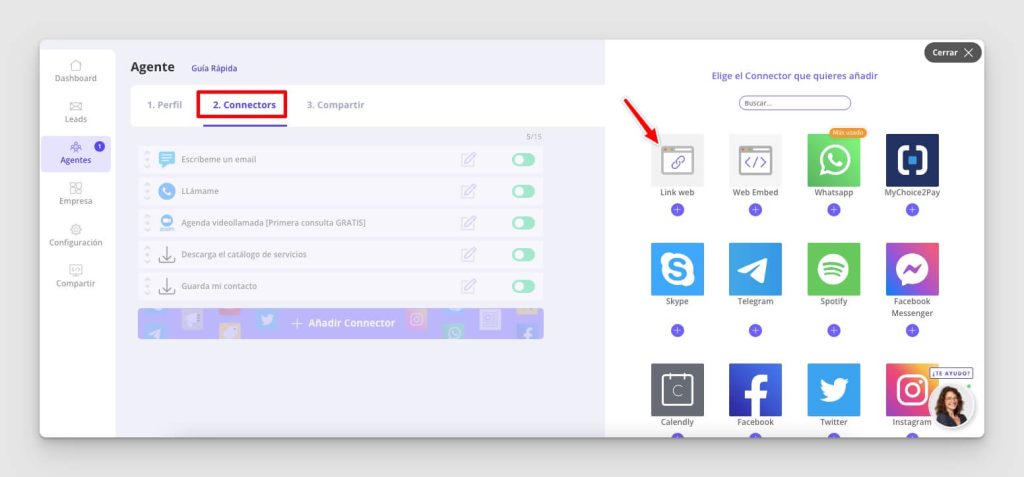
Step 3: Choose a template or customise your card's design.
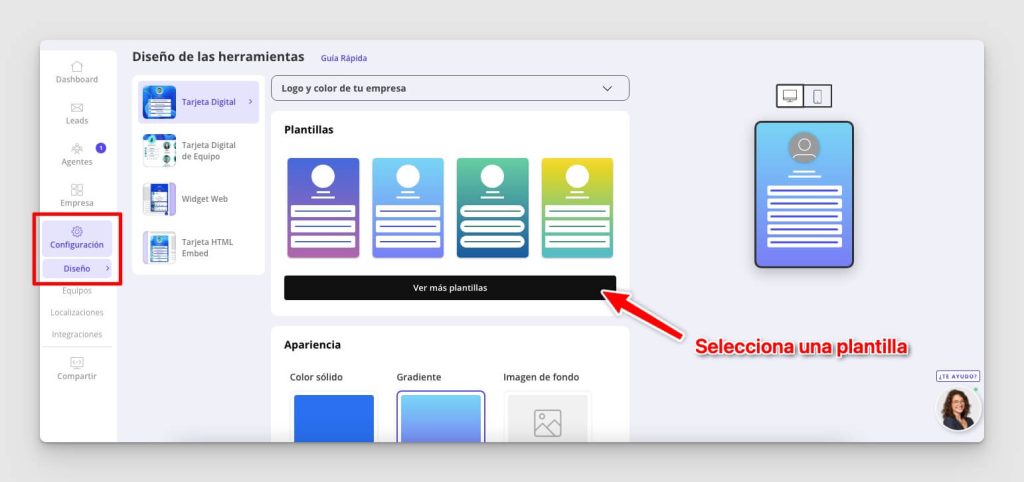
From the side menu, go to Settings > Design. In this section you have several templates available, so you only need to select the one you like best.
If you prefer, there are advanced design options to customise your card's colour, add a background image or define the styles of the contact buttons.
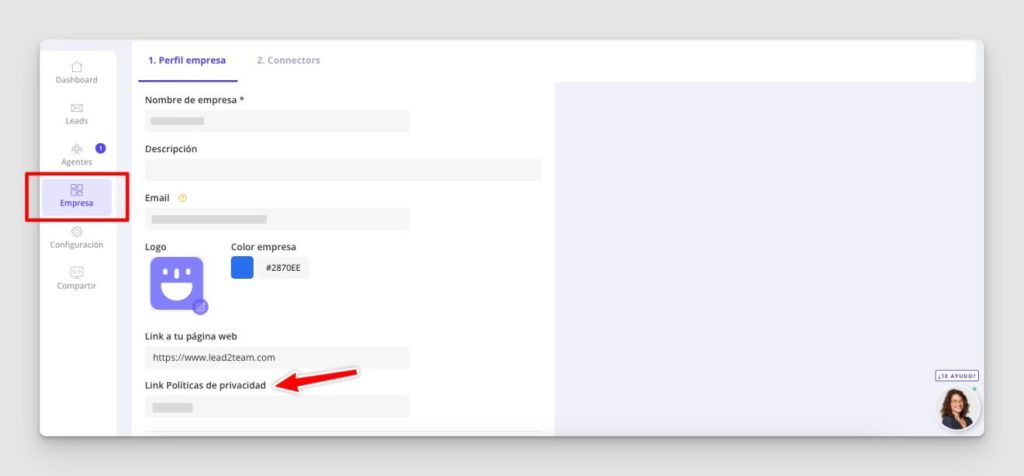
IMPORTANT! ➡️ Also go to the Company section to add your logo, social media and the link to the company's privacy policy. If you plan to include email forms so people can contact you and leave their details, it is important that users accept your company's privacy policy.
Step 5: Share your digital card with others
You have several options to share your contact: you can download the LINK to your card on your phone , add it to your WALLET and share it using the QR CODE, or through the NFC Card.
▶️ Here are video tutorials on how to share your contact
Advanced features of the Lead2Team platform
✅ QR Code generator and QR email signature
From the Lead2Team platform you can download unlimited QR codes and customise their colour and shape. You can also generate an email signature with the QR code of your digital card.
✅ Web Assistant to improve your website's conversion
With the Web Assistant feature you can embed the digital business card on your website as a help button for web visitors.. When users browse your site, they can click the assistant and contact you. This tool is perfect for teams and companies, because from the platform you can create teams and display different people depending on the web page your customer is visiting.
✅ Review capture
Activate Reviews Mode from your digital card and easily request reviews. Get more 5-star ratings and improve your company's ranking on Google, Trustpilot or TripAdvisor.
✅ Card manager with NFC technology
At Lead2Team, you can get an NFC card with a fully customised design. The platform includes an NFC manager and lets you set it up to show your digital card, a website, or automatically download your vCard.
✅ Metrics and CRM integrations
The Lead2Team platform has a LEADS, CLICKS AND REVIEWS section. Here you can see all the contacts, leads and reviews you have generated through your digital card, sorted by date and time. To make management easier, you can export this information to Excel or connect it automatically to your company's CRM.
Put it into practice with your team
Create your team's digital cards and share them in seconds, with full brand control.