How to make VCard with QR: Step-by-Step Guide with Lead2Team
A vCard with a QR code is a contact file that, when the code is scanned, saves straight into the phone's contacts with your details already filled in. To make one, generate your digital card, enable the vCard and share its QR. Sales teams use it so the client saves their contact without typing anything.
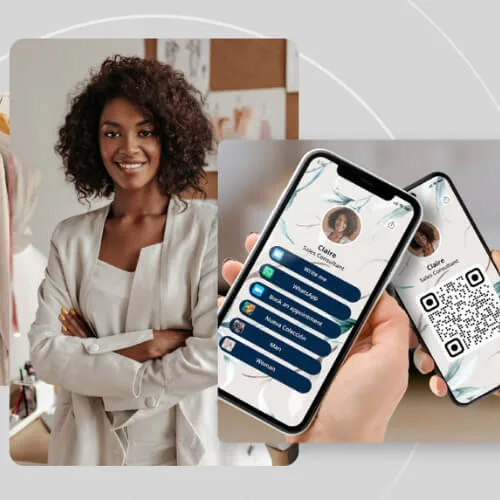
The vCard is a tool that will boost your networking and help you project a more professional image while you reach a new level of interaction with your customers. Read on to learn how to make a vCard with QR step by step, the ways to share it and some tips for using it effectively.
What is a vCard and why do you need one?
A vCard could be defined as the modern version of the conventional business card, that commonly rectangular, printed one that highly serious entrepreneurs or professionals used to hand over when introducing themselves.
The vCard, or digital business card with QR, helps convey that sense of seriousness and professionalism, but with a more current touch, eco-friendly and functional. It is a digital card that brings together links, contact details, a description of your services and even product catalogues in a single place, in a clear, visually appealing and well-organised way.
Some platforms for creating this type of card even offer tracking and data storage. In other words, you can keep in a single place the data of the people who opened your card, with date, device type, location, etc. At the same time, you can also store other people's cards whose contact you want to keep.
Finally, this tool creates incredible savings for professionals and businesses. No more printing cards by the thousand. No more losses from typing errors. You just enter the site, create, update and share. And that's it! A marketing tool in an instant.
Steps to create your vCard with a QR code using Lead2Team
You may wonder why we chose this platform, and the answer is really simple. To save you time and effort, we reviewed different options on the web, ran comparisons, checked prices, offers and more, and this was our favourite!
With Lead2Team you will have, on the same platform:
- A space to create different vCards with QR,
- Design tools,
- A wide variety of connectors,
- Expert advice,
- A generator to integrate your card's QR,
- Tracking of your cards and your audience's activity within them.
So let's not waste any more time; here are the steps to create a vCard, so you can start improving your networking and see results in no time:
Log in to the Lead2Team platform
First you will need to become a user of the site. Click on Create your account. A form will appear on screen for you to enter the name of your company or business (it can be your own as a professional, if you prefer), an email, your country and a new password to access the site. You will receive an email to verify the address. Go to your inbox, find the message and click the link to continue.
Once done, you can log in as normal with the Login button and by entering your credentials. Once inside, find the Agents section to start creating your vCards.
Fill in your personal and professional information
This is the first step to designing and making an effective vCard. Fill in the form with the most relevant personal, contact and professional information. That is, your first and last name (or stage name, if applicable), your role within the business or your professional role (e.g. independent lawyer, CEO, admin, etc.) and your contact details.
For this last detail, the default is WhatsApp, but you can add more contact details using connectors. These are buttons that connect your digital card with other elements or functions. Call, book an appointment, web link, social media, videos. You can add different connectors depending on your goals for this vCard with QR. You should never, however, overuse them or the elements you can add. Use only what is truly necessary so as not to overload the card.
Choose a design that fits your brand
At Lead2Team you have a range of templates at your disposal that you can use as a starting point. You can then adjust it to your brand image by changing the background and button colours, and the shape and logo of the connectors. At this step it is important to consider what you want to project: a serious, elegant image with a solid, dark background and straight shapes, or bright colour gradients and softer, rounder shapes.
Remember, too, that the platform has a varied gallery of icons for the connectors. This way, if your image works with red, you can place the black, background-free WhatsApp logo and achieve the harmony that your vCard with QR and your brand deserve.
Generate and customise your QR code
Don't let the title scare you. You don't need to code or know anything about IT to complete this step. Just go to the top menu, to the Share section. You will find a drop-down menu that says Link; when you click it, you will see the other options, including QR Generator. The code will be created automatically and all that's left is to adapt it to your card's design so it doesn't clash.
You can edit the code's rigidity — whether you want it square, semi-rounded or rounded — as well as the background colour and the colour of the code itself. Then you can download it as .png or .svg, view it and download it to add it to other elements, physical or virtual.
Preview and save your digital vCard
On the right-hand side you will always have an image showing how your vCard is shaping up, which you can switch between desktop mode and mobile mode. This lets you preview your card and edit it as you see fit.
To save it, go back to the Share section and select the option you want to store: the QR alone (ideal for merging with other designs), the vCard, the team card, the web tool, HTML version or the email signature. You can download whichever format you want and share it on your social media, in print, or keep it in your phone's gallery ready to show.
How to scan and share your vCard with a QR code?
I already gave you a glimpse of the ways you can distribute your card. Always remember that the medium, the strategy and the information linked to your vCard with QR, depend directly on your business and the goals you want to achieve with the help of this tool. Even so, there are two fundamental ways for your audience to make use of your card's QR:
Scanning with mobile devices
This works with both physical and virtual elements. You can carry the code on your phone screen and ask the person you are meeting to open the camera on their smartphone and simply hold your vCard's QR up to the camera. Likewise, you can print it on a business card, sign, advert, cup, packaging, menu, screen or badge and, in the same way, the user will open the camera on their device to scan the code.
With this method, you (or your business) introduce yourself face to face with the customer. It is, let's say, a more personal way to create a contact, which generates a direct and close interaction with the customer.
Sharing your vCard on social media and emails
This one, for its part, works in an impersonal way but is just as (or even more) effective depending, again, on your goal. You can add the vCard or the QR alone to a social media post, keep it loaded on your profile or leave it in your highlights so that everyone who visits your social media sees it.
You can also add it to your email signature. This way, instead, the card's QR goes straight to one recipient. The email option is a little more direct, though far less mass-reaching. Because the person receiving the email already has a line of communication with you, or you know first-hand that they are interested in the connection, so you open the door for them, with their existing interest, to scan, save and create a new contact with you.
Tips to optimise your vCard with a QR code
Now, here are some of the tips that will make your relationship with customers, through the vCard, truly effective. Take them into account and remember to monitor your card's results with your tracking tool:
Keep your information up to date
Updating the information on these cards is not like with conventional ones. You will save time and money, and you only need to log in to the platform to do it. But it is essential that you keep all your details up to date. Contacts, products, niche, launches, roles, etc. The customer should always know what you offer at the moment they visit your card.
Choose professional and consistent designs
Look at your brand colours, what you want to project, the typography, examples from your niche and everything you need to create a great design. Remember to keep consistency between what you offer and what you say you offer, and to avoid mistakes that undermine the professionalism of your design (spelling errors, for example).
Use a high-quality QR code
This will make scanning and sharing your code easier. If the user has to scan several times but gets an error, you will leave a bad impression that's hard to erase. Also avoid transferring your vCard's QR image through platforms that reduce the file's quality. Download once, create a good design and save it where you can find it in an instant.
Create your vCard with QR using Lead2Team's QR generator
This is, without doubt, one of the best QR generators on the market. At Lead2Team you will have the tools you need to create a vCard with an integrated QR that makes a great impact and that you can then distribute through whichever channels you and your brand or business need.
Create your vCard with Lead2Team and get to know the platform with the trial version and the help of our support team, and give your cards the boost you've been looking for.
Related articles
Put it into practice with your team
Create your team's digital cards and share them in seconds, with full brand control.